How to get a Google Maps route onto a Garmin device
Garmin devices generally import courses or routes as GPX (or FIT Course). Start from a Google Maps directions URL, convert to track-format GPX here, then bring the file into Garmin Connect.
TL;DR
Paste your Maps directions URL into GMaps To GPX → download track GPX → import in Garmin Connect / device per Garmin’s docs. We show our product steps with our own UI; Garmin menus are text-only because third-party screenshots are not used.
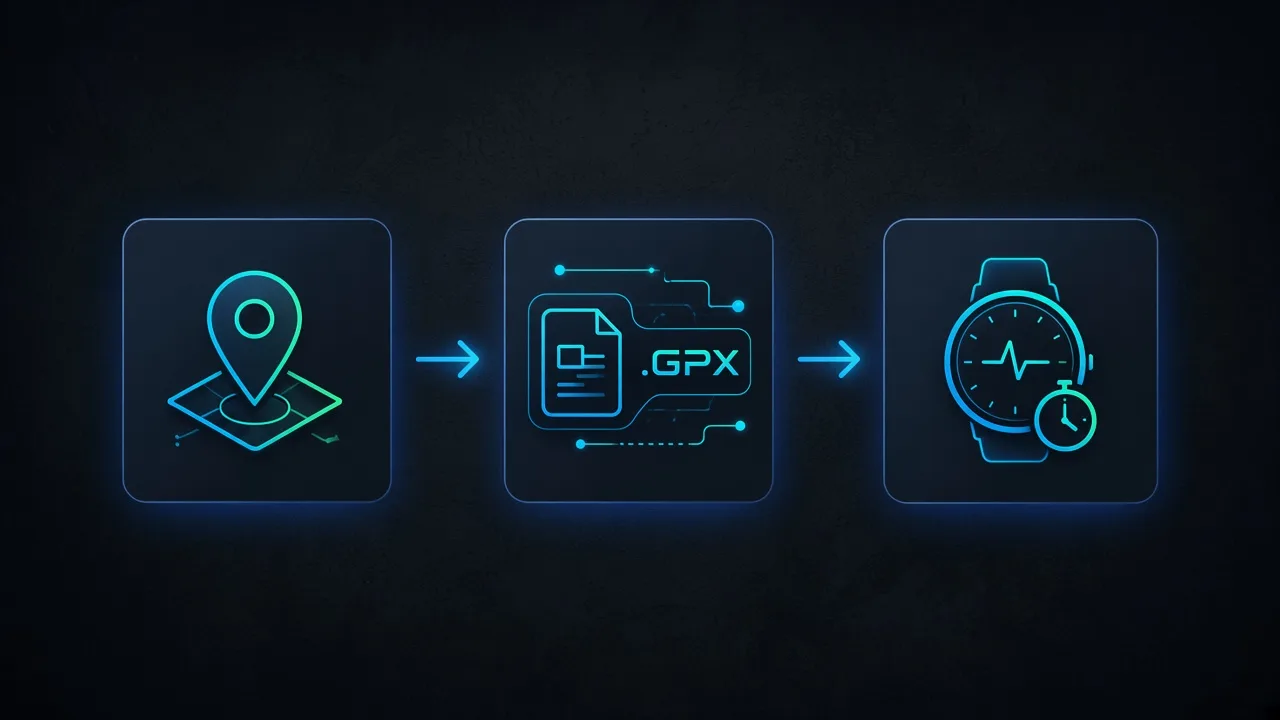
The workflow
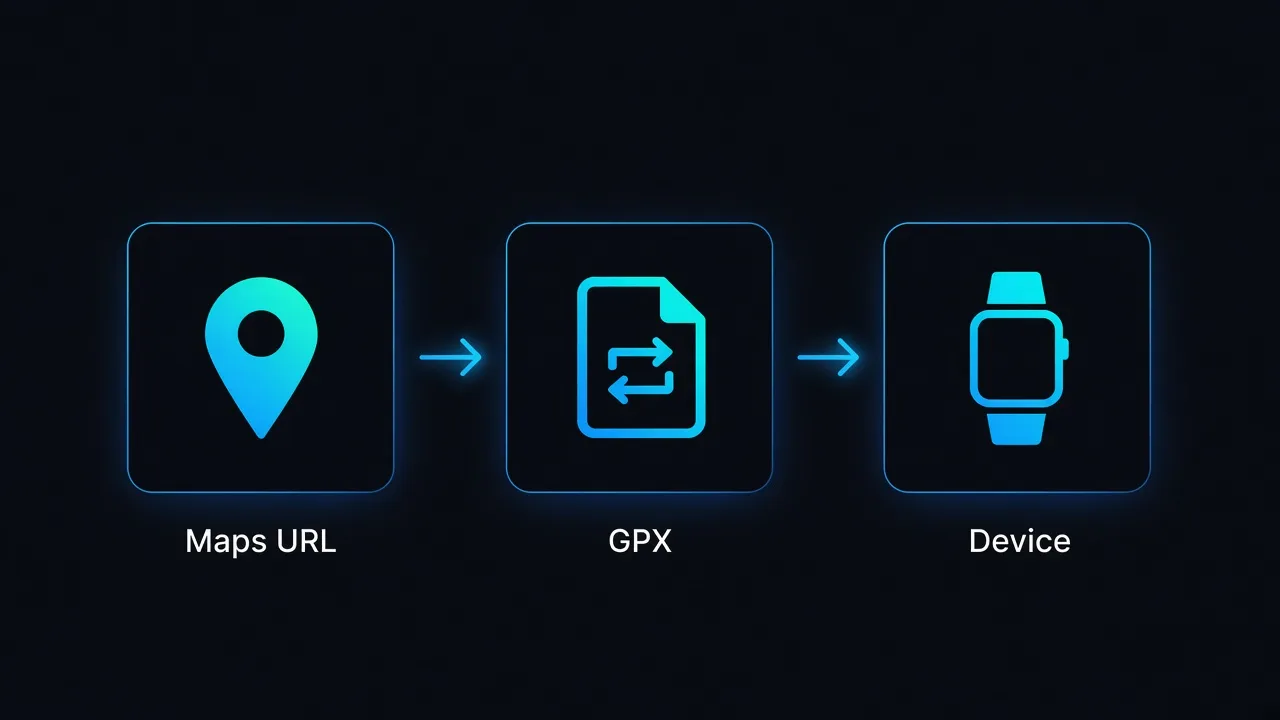
- Create directions in Google Maps and copy the URL (short links OK if they contain /dir/ after expansion).
- On GMaps To GPX, paste the link, sign in, choose track format, convert, and download the GPX.
- Import the GPX into Garmin Connect or your device as a course/route. Menu names vary — follow Garmin’s current help articles.
- Optional: if the file is huge, compress it with GPX Simplify first; for Course FIT, use GPX to FIT.
On GMaps To GPX (our product)
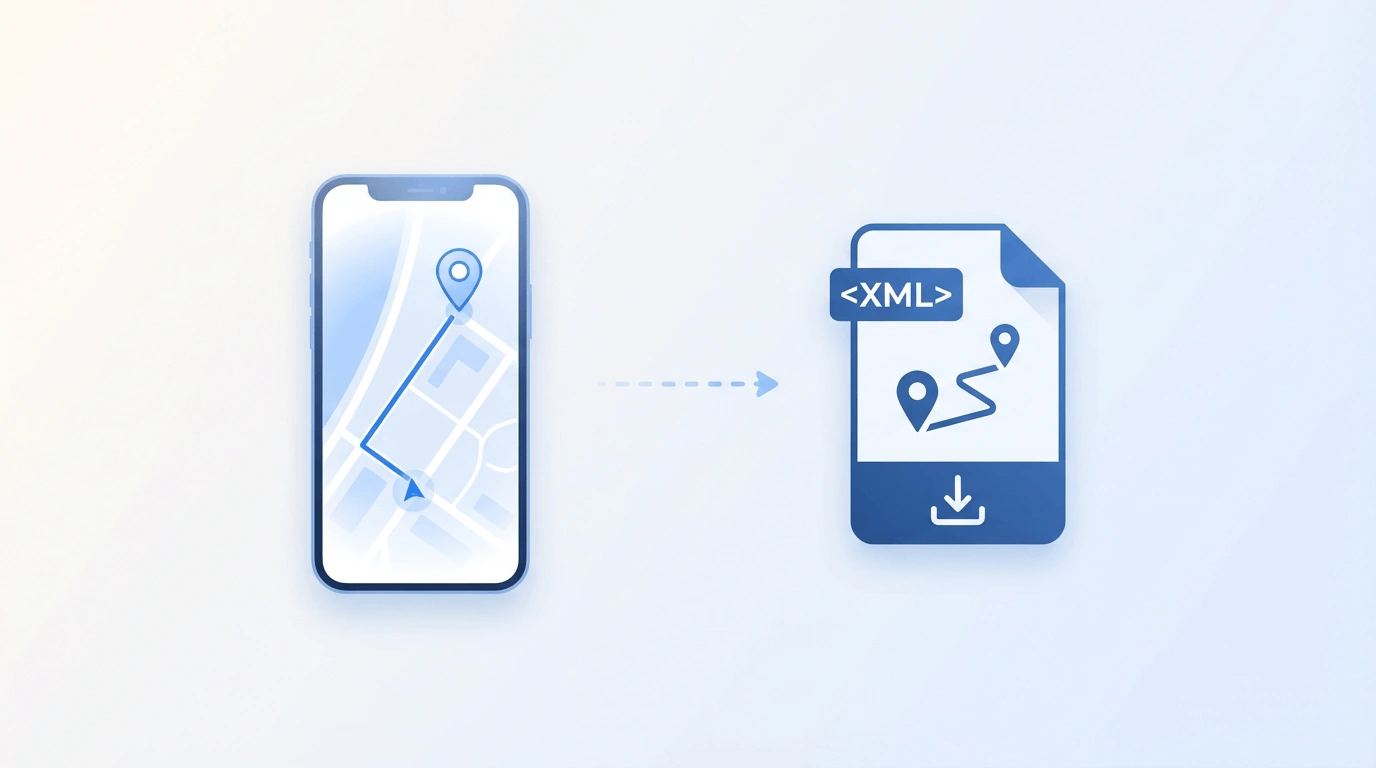
Use the converter on the home page or Android-oriented track flow. After conversion, download the .gpx file to your computer or phone.
On Garmin (text only — check official docs)
Garmin Connect and device menus change over time. Typical pattern: upload or import a GPX/course in Garmin Connect, then sync to your watch or Edge. For exact clicks, use Garmin’s documentation:
Garmin support — courses and routesWe do not screenshot Garmin software. If a menu label differs on your firmware, trust Garmin’s help for your model.
Tips
- Prefer track mode so the path follows roads from Google Directions.
- Multi-stop Maps routes are supported when the URL is a full directions link.
- Need TCX or FIT instead? Use the free format tools after you have GPX.
FAQ
Related tools
Convert Maps → GPX for Garmin
Paste a directions URL and download a track-format GPX file.
Convert now