
GPX waypoints for iPhone, Xcode, and iOS Simulator
Convert a Google Maps directions link into a GPX waypoint file for Xcode location simulation and iPhone GPS testing. Paste, sign in, and download.
Why use GPX waypoints for iPhone?
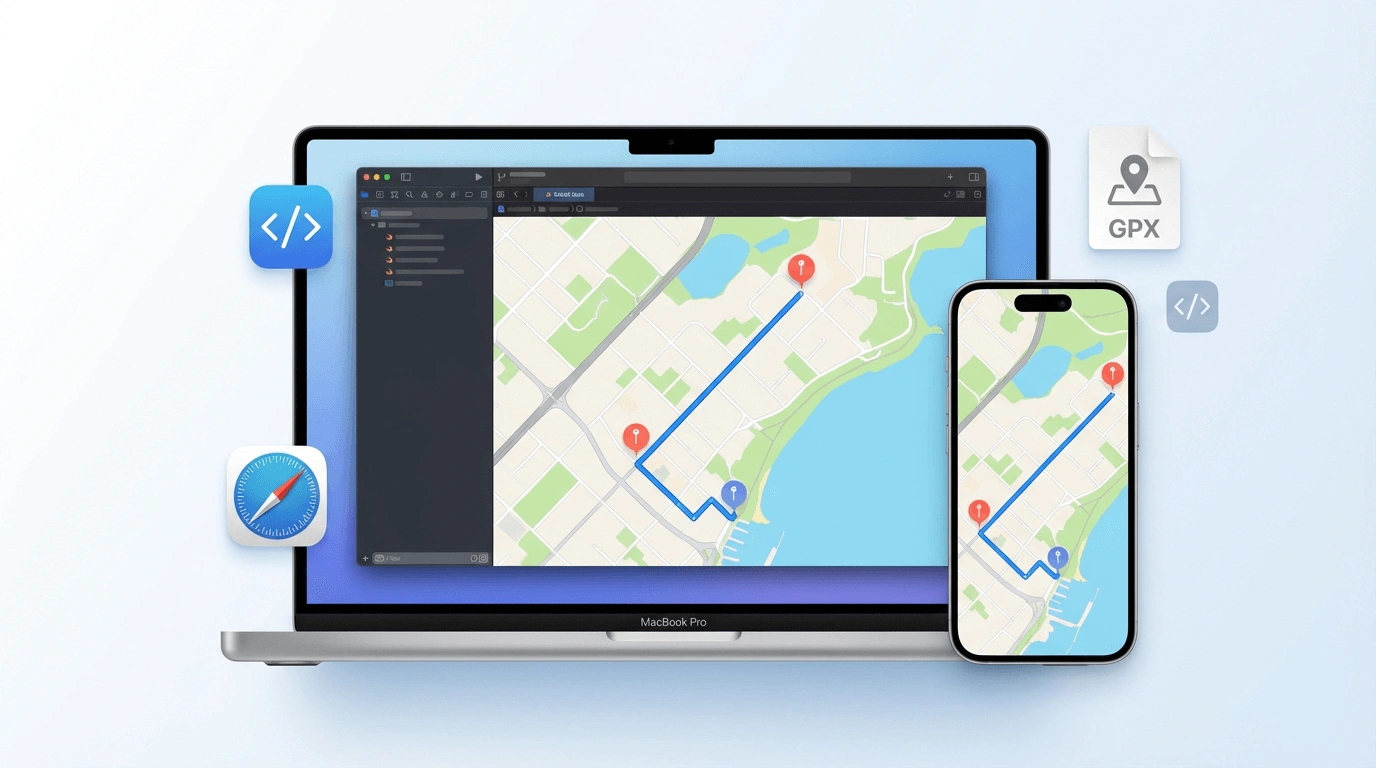
Google Maps to GPX for iPhone means converting a Maps directions URL into waypoint-format GPX for Xcode and the iOS Simulator. Those tools simulate location with named waypoints — not dense tracks.
Waypoint format for iOS
The iOS Simulator in Xcode and most iPhone location testing workflows use GPX waypoints. This page outputs waypoint-format GPX, ready to load.
Xcode and iOS Simulator
Load the GPX file directly into an Xcode project to simulate movement in the iOS Simulator, or use it with any iOS location-aware app for testing.
Private conversion
We use your Google sign-in only to fetch the route. Your route data is not stored after the GPX file is generated.
How to convert Google Maps to GPX for iPhone
Three steps from a Maps link to a GPX file in your Xcode project.
Copy your Maps link
Open Google Maps, set a directions route, and copy the URL. Full and short maps.app.goo.gl links both work.
Paste, sign in, and convert
Paste the link above. Sign in with Google, confirm the iPhone/iOS mode is selected, then convert to get waypoint GPX.
Add to Xcode or testing tool
Download the GPX file and add it to your Xcode project, or load it into your iOS location simulation workflow.
Simulated travel options
When you download your GPX, you can set these options in the Simulated Travel Options dialog.
Simulated Travel Duration
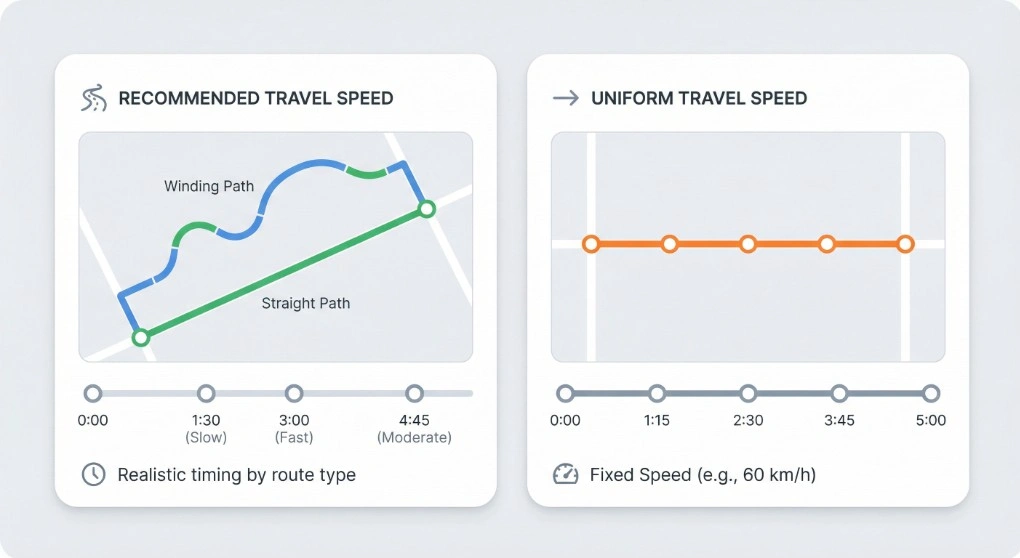
Choose Recommended Travel Speed for realistic timing based on your route type (walking, cycling, or driving), or Uniform Travel Speed to set a fixed speed (e.g. 60 km/h). The timestamps on each waypoint are spread accordingly, so the total simulated duration matches your choice.
Extra wait time at waypoints
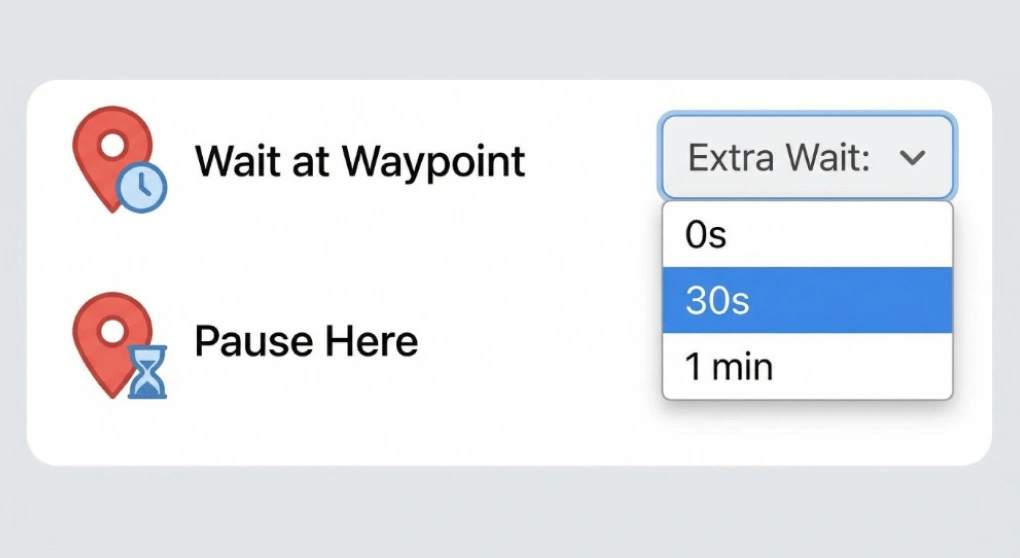
Add an optional pause at every waypoint — e.g. 0s, 30s, or 1 min. Useful for simulating stops at Pokemon GO locations or for testing apps that expect the user to stay at a point for a while before moving on.
Include Estimated Elevation
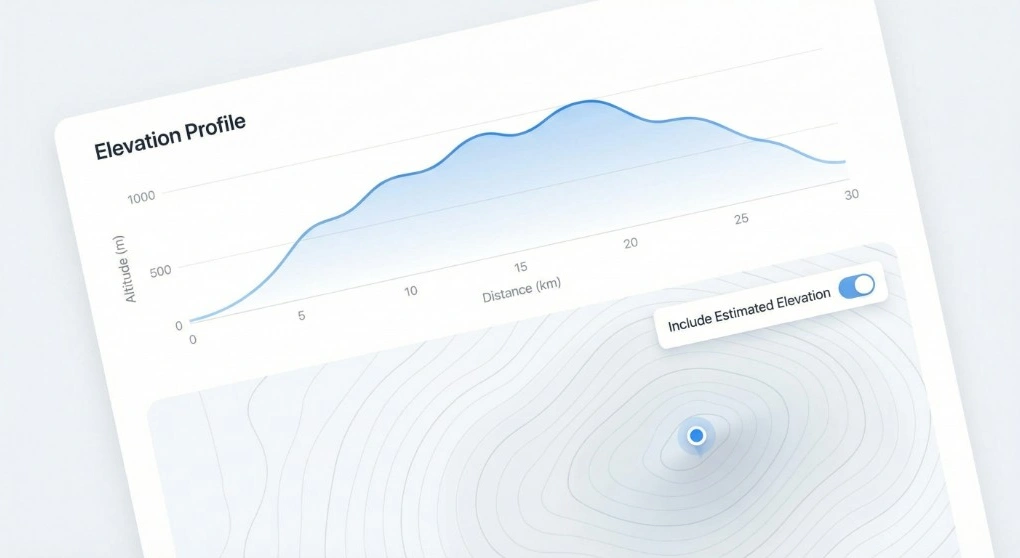
When downloading for iPhone or Android, you can turn on Include Estimated Elevation to write an estimated elevation value for each point in the GPX. Handy for fitness apps, terrain-aware navigation, or any tool that uses altitude data.
Good to know
Xcode's iOS Simulator expects a GPX file with waypoints — named, discrete GPS points. This differs from a GPX track, which is used for Android apps and Garmin devices. Selecting iPhone/iOS mode here outputs waypoint-format GPX that Xcode can read directly.
To load the file in Xcode: open your project, go to Debug → Simulate Location → Add GPX File to Project, and select your downloaded file. Then choose it from the Simulate Location menu in the iOS Simulator.
The Google Maps URL must be a directions route (containing /dir/). Short maps.app.goo.gl links are supported.
When to use this tool
- iOS developers testing location-aware apps in Xcode without physical travel.
- QA testers running location scenarios on iPhone in a reproducible way.
- Navigation app developers testing turn-by-turn directions along a specific route.
- Fitness app developers simulating a run or walk on iPhone.
For Android track format, use the Android GPX page. For Pokemon GO, use the Pokemon GO GPX page.
Frequently asked questions
Ready to export iPhone GPX waypoints?
Paste a Google Maps directions link above and download a waypoint-format GPX for Xcode.