
Turn any Google Maps route into a GPX file
Paste a Maps directions link, choose track or waypoint format, and download a GPX file compatible with Garmin, OruxMaps, Xcode, and Pokemon GO.
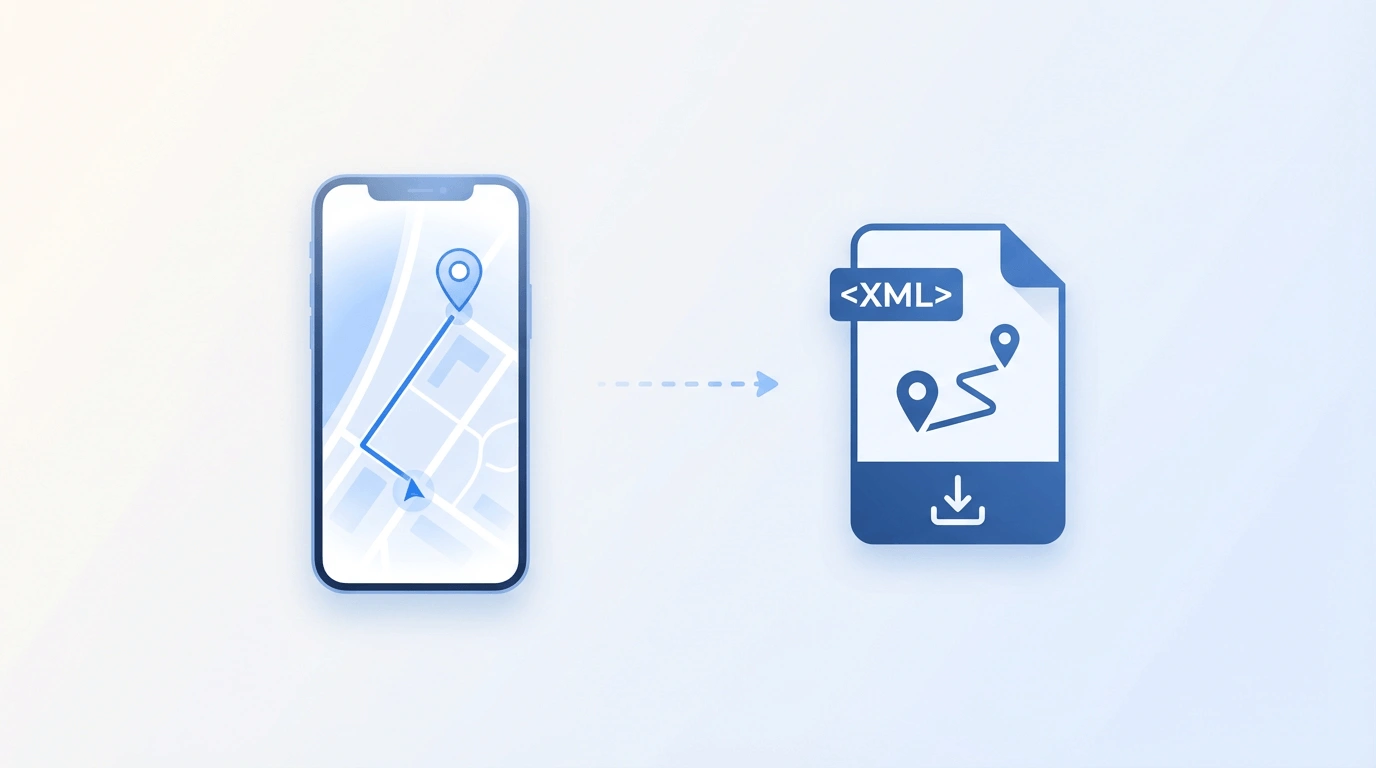
Why convert Google Maps to GPX?
Google Maps only gives you a link. Most GPS devices and apps need a file.
One-click conversion
Paste a Google Maps directions URL and get a GPX file in seconds. No desktop software, no plugins, no installs.
Works on every device
Track format for Android apps like OruxMaps and Locus Map. Waypoint format for iPhone, Xcode, and Pokemon GO route tools.
Private by design
Conversion runs on our server only when you sign in. You can delete your route data yourself after the GPX file is generated.
How it works
Three steps from Maps link to GPX file.
Paste your link
Copy a Google Maps directions URL from any browser or app. Both full URLs and short maps.app.goo.gl links work.
Sign in and convert
Sign in with Google so we can fetch the route. Choose track or waypoint format, then convert.
Download and use
Open the GPX file in OruxMaps, Garmin, Xcode, Pokemon GO tools, or any app that accepts GPX.
Auto-detect travel mode
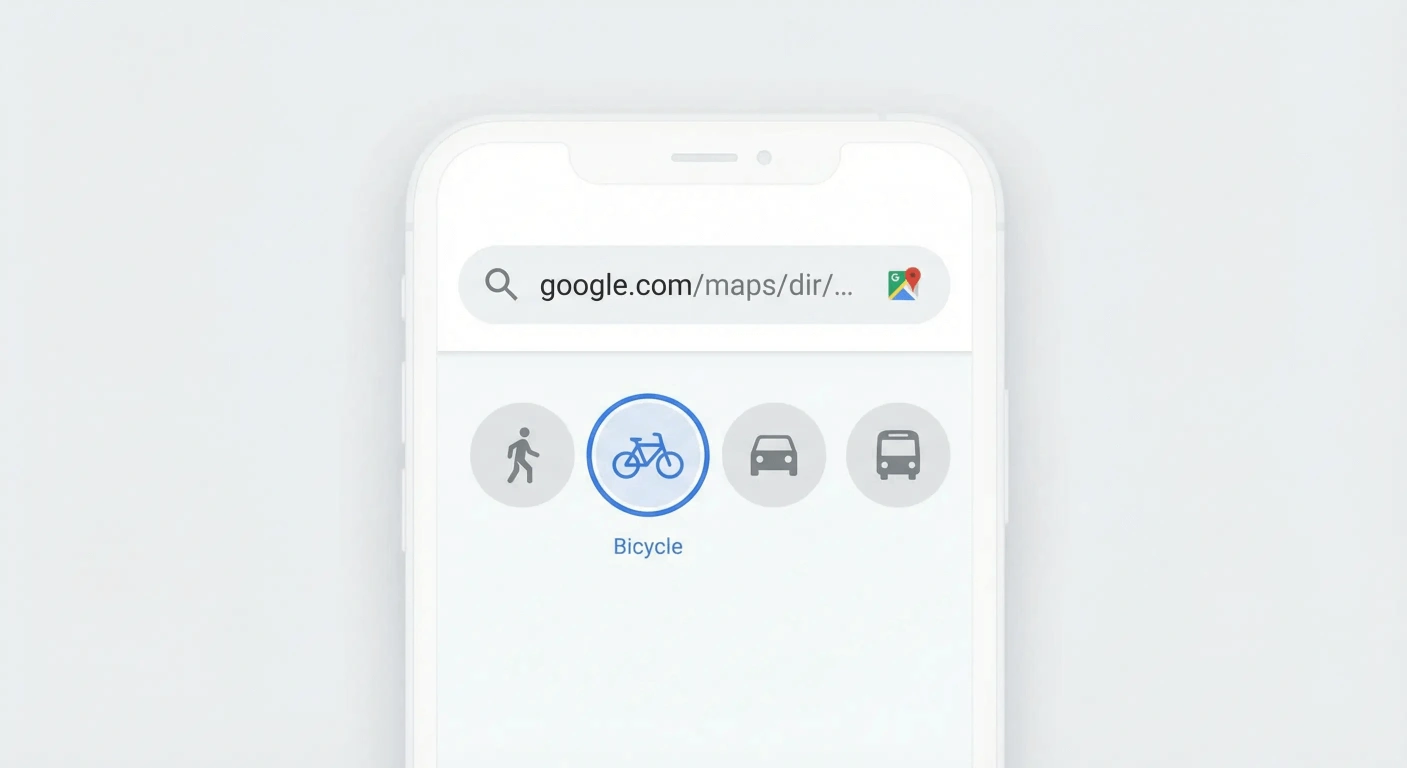
Paste a Google Maps directions link and the tool automatically reads the route's travel mode — walking, cycling, driving, or transit — from the URL. No need to choose it yourself.
Multiple route options
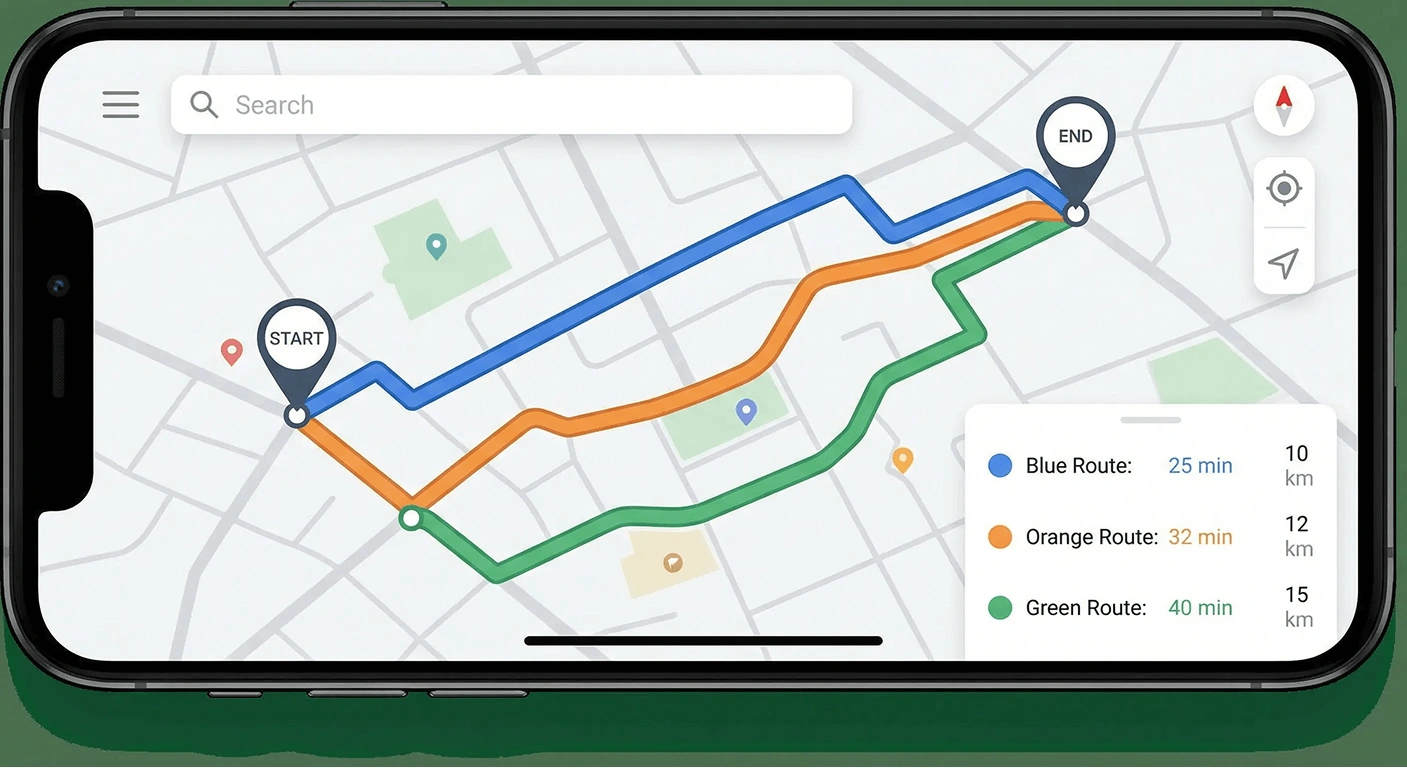
Google Maps often shows several alternative routes. The tool lists all of them so you can select which route to convert to GPX before downloading.
Track format
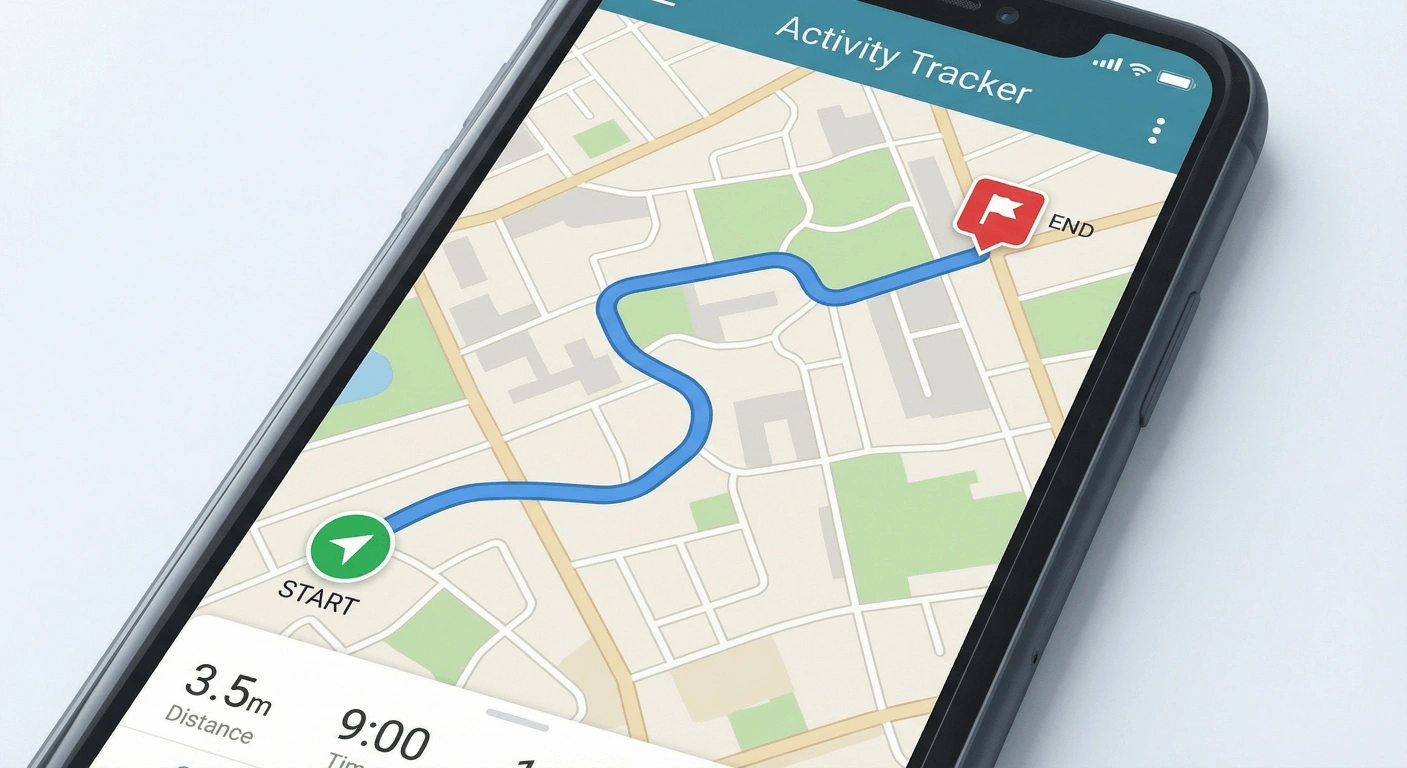
Export a continuous line of GPS points that follows the full path. Ideal for walking and cycling navigation in apps like OruxMaps, Locus Map, and Garmin devices.
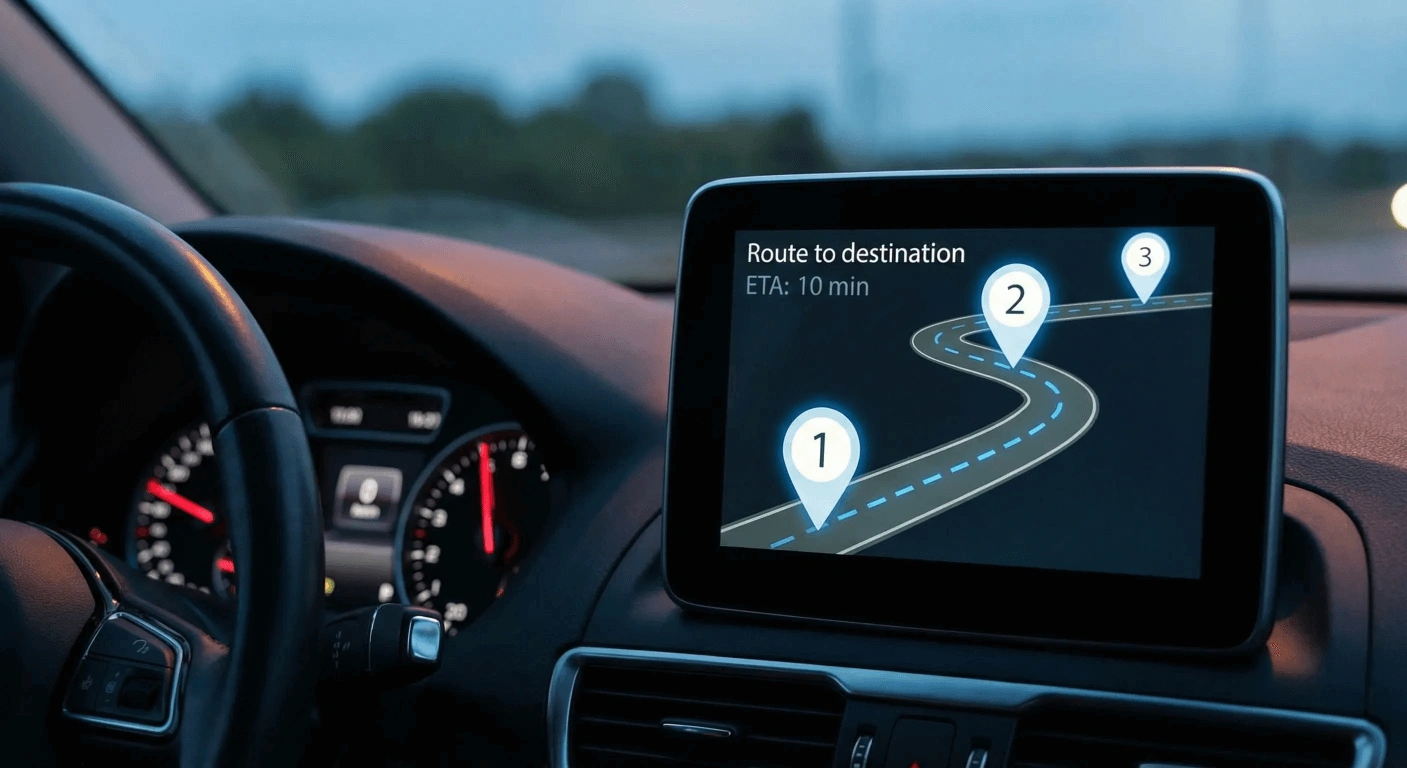
Route format
Export only the key waypoints for a lighter file. Best for driving navigation and for Xcode location simulation when you need discrete points instead of a full track.
Who uses Google Maps to GPX
Any GPX-compatible device or app can use the output — here are the most common workflows.
Android & GPS apps
Import a GPX track into OruxMaps, Locus Map, OsmAnd, or any Android navigation app that accepts GPX.
iPhone & Xcode
Load GPX waypoints into Xcode's iOS Simulator for location testing and app development.
Pokemon GO
Generate timestamped GPX waypoints for Pokemon GO route simulation tools.
Garmin, Strava & other formats
Convert GPX to KML, TCX, or FIT for Garmin devices, Google Earth, and fitness platforms.
Supported formats
GPX (GPS Exchange Format) is the primary output — an open XML standard for tracks and waypoints supported by Garmin, Strava, OruxMaps, Locus Map, Komoot, and virtually every GPS device and app.
Need a different format? The format conversion tools let you convert between GPX, KML (Google Earth), TCX (Garmin Training Center), and FIT (Garmin binary). All conversion runs in your browser.
Frequently asked questions
Ready to convert your first route?
Paste a Google Maps directions link above and download your GPX file.